
Some WordPress plugins handle a single setting. Others manage backups, security, payments, or dozens of connected features. That difference matters when you consider replacing a plugin with a code snippet.
Below are 21 small WordPress tasks you can handle with code, along with what each example replaces, how to check it, and when keeping the plugin makes more sense. Several examples replace features within larger plugins. This is not a promise that you can uninstall 21 separate plugins.
My recommendation: replace a plugin only when you understand the feature you need and can maintain the replacement. Fewer plugins do not automatically mean a faster website. Start with my WordPress speed optimization guide to identify changes worth making. For tools worth keeping, see my WordPress plugins guide.
How to add these snippets with WPCode
- Back up the site and test on staging first.
- In WPCode, add a custom snippet and choose PHP Snippet.
- Give it a clear name matching the task. Paste one example without an opening PHP tag.
- Choose Auto Insert → Run Everywhere. The hooks inside each snippet control when it runs, including login screens, feeds, and admin requests.
- Replace any example values, save, activate, and follow that section’s verification steps.
- When replacing an existing feature, disable its overlapping implementation on staging, then compare the result before removing the old plugin.
Watch the 20-second WPCode walkthrough
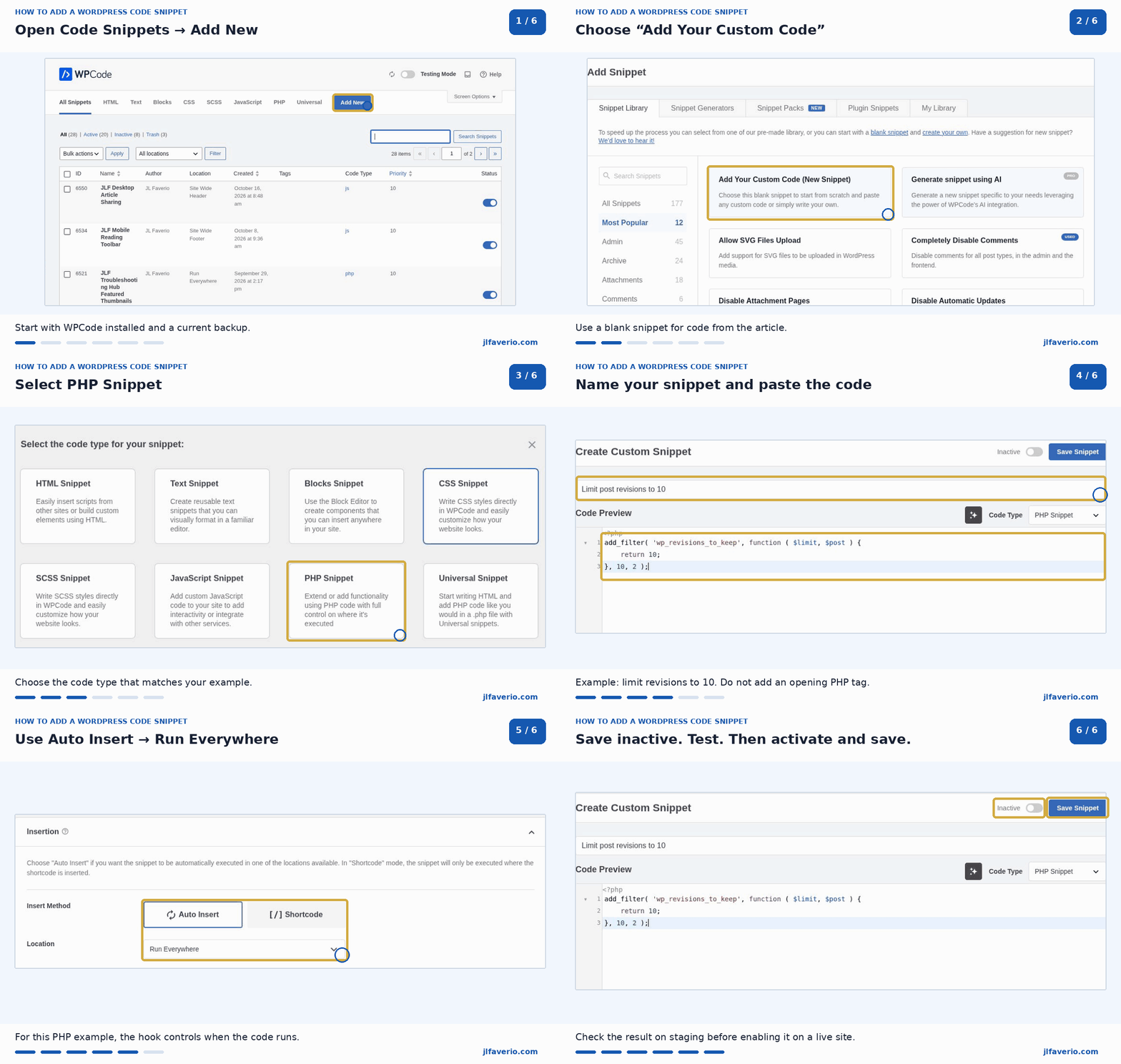
These examples use standard WordPress hooks. They have not been activated or functionally tested against every theme, plugin, or hosting setup. They are separate options, not a bundle to enable all at once. If a change breaks something, disable that snippet. Keep access to your host’s recovery tools.
Using WPCode means you still have a snippet-management plugin. The benefit is keeping small customizations organized in one place. An experienced developer can also use a small custom plugin. Avoid placing site functionality in a parent theme that updates will overwrite.
Limit post revisions to 10
Can replace: Revision-control plugins.
Keeps up to 10 revisions per supported post instead of letting the history grow indefinitely.
View code
add_filter( 'wp_revisions_to_keep', function ( $limit, $post ) {
    return 10;
}, 10, 2 );
Check the result: Save a test post repeatedly and check its revision history. This is not a bulk cleanup tool; older revisions are pruned through WordPress revision processing.
When to keep the plugin: Keep a plugin if you need bulk cleanup, storage reports, or different controls for individual post types.
Use the Classic Editor for posts and pages
Can replace: The basic editor-switching function of Classic Editor.
Selects the classic editing screen for posts and pages while leaving other post types alone.
View code
add_filter( 'use_block_editor_for_post_type', function ( $use_blocks, $post_type ) {
    return in_array( $post_type, array( 'post', 'page' ), true )
        ? false : $use_blocks;
}, 10, 2 );
Check the result: Open a new post and page. Existing block content is not converted into classic HTML; check it on staging before editing.
When to keep the plugin: Keep Classic Editor if you need its user preferences, editor switching, or compatibility features. This does not replace the Site Editor.
Restore the classic Widgets screen
Can replace: The basic function of Classic Widgets.
Uses the classic widgets interface on themes that support widget areas.
View code
add_filter( 'use_widgets_block_editor', '__return_false' );Check the result: Open Appearance → Widgets on a classic theme. This does not add widget areas to a block theme or convert every existing block widget.
When to keep the plugin: Keep the plugin if you prefer an officially maintained switch instead of managing the setting yourself.
Close comments and pingbacks sitewide
Can replace: The comment-closing function of a plugin such as Disable Comments.
Stops new comments and pingbacks through the normal WordPress checks and hides existing comments from standard comment lists.
View code
add_filter( 'comments_open', '__return_false', 20, 2 );
add_filter( 'pings_open', '__return_false', 20, 2 );
add_filter( 'comments_array', '__return_empty_array', 20, 2 );
Check the result: Check an old post while logged out. Existing comments remain in the database. The Comments admin menu and every theme message are not removed.
When to keep the plugin: Use care on stores: product reviews can use the comments system. Keep a plugin for granular controls, admin cleanup, or integrations.
Close comments only on pages
Can replace: A post-type comment restriction.
Closes comments and pingbacks on pages while preserving the current setting for posts.
View code
$jlf_close_page_comments = function ( $open, $post_id ) {
    return 'page' === get_post_type( $post_id ) ? false : $open;
};
add_filter( 'comments_open', $jlf_close_page_comments, 20, 2 );
add_filter( 'pings_open', $jlf_close_page_comments, 20, 2 );
Check the result: Test a page and a blog post. This closes submissions; previously published comments can still appear. Choose this or the sitewide version above.
When to keep the plugin: Keep a plugin if editors need to control restrictions without touching code.
Hide the front-end toolbar for subscribers
Can replace: A subscriber toolbar-hiding plugin.
Hides the toolbar for users with the subscriber role when they view the public website.
View code
add_filter( 'show_admin_bar', function ( $show ) {
    $user = wp_get_current_user();
    return in_array( 'subscriber', (array) $user->roles, true )
        ? false : $show;
} );
Check the result: Log in with a test subscriber account and view the homepage. The dashboard toolbar and user permissions are unchanged.
When to keep the plugin: Keep a plugin if you need a visual rule builder for several roles. Hiding a toolbar is not an access restriction. If the toolbar disappears for administrators too, see how to restore a missing WordPress admin bar.
Send subscribers to the homepage after login
Can replace: A simple login-redirect rule.
Redirects subscribers after a normal WordPress login while leaving other users on their original destination.
View code
add_filter( 'login_redirect', function ( $redirect, $requested, $user ) {
    if ( $user instanceof WP_User &&
        in_array( 'subscriber', (array) $user->roles, true ) ) {
        return home_url( '/' );
    }
    return $redirect;
}, 10, 3 );
Check the result: Log in as a test subscriber and administrator. Membership, checkout, and single-sign-on flows can handle redirects separately.
When to keep the plugin: Keep a redirect plugin for multiple destinations, custom rules, or membership integrations.
Add a custom login logo
Can replace: The logo portion of a login-customization plugin.
Uses your existing WordPress custom logo on the standard login screen.
View code
add_action( 'login_enqueue_scripts', function () {
    $url = wp_get_attachment_image_url( get_theme_mod( 'custom_logo' ), 'full' );
    if ( ! $url ) {
        return;
    }
    echo '<style>body.login h1 a{background-image:url("' .
        esc_url( $url ) . '");background-size:contain;width:240px;height:90px;}</style>';
} );
Check the result: Set a logo in your theme first, then open the standard login page in a private window. Themes without a custom logo need a different image source.
When to keep the plugin: Keep a branding plugin for background images, layout controls, or preview tools.
Make the login logo link to your website
Can replace: A login-logo link customization.
Sends visitors to your homepage when they click the standard login logo and gives it your site name.
View code
add_filter( 'login_headerurl', function () {
    return home_url( '/' );
} );
add_filter( 'login_headertext', function () {
    return get_bloginfo( 'name' );
} );
Check the result: Open the login screen and check the logo link and accessible text. Combine with the previous snippet if you want both changes.
When to keep the plugin: Keep a customization plugin if you already rely on its other branding features.
Add a dashboard help box
Can replace: A basic custom dashboard widget.
Adds a small help panel with a link to the WordPress documentation.
View code
add_action( 'wp_dashboard_setup', function () {
    wp_add_dashboard_widget( 'jlf_site_help', 'Website Help', function () {
        echo '<p>Before changing plugins, make a backup and test on staging.</p>';
        echo '<p><a href="https://wordpress.org/documentation/" target="_blank" rel="noopener noreferrer">WordPress documentation</a></p>';
    } );
} );
Check the result: Visit Dashboard → Home and look for Website Help. Replace the static wording with instructions relevant to the site.
When to keep the plugin: Keep a dashboard plugin for video libraries, editable client resources, or different panels by role.
Remove the WordPress Events and News widget
Can replace: A basic dashboard cleanup rule.
Removes one specific dashboard panel without hiding update notices or Site Health. If the problem is performance rather than clutter, follow my guide to fixing a slow WordPress dashboard.
View code
add_action( 'wp_dashboard_setup', function () {
    remove_meta_box( 'dashboard_primary', 'dashboard', 'side' );
}, 99 );
Check the result: Reload Dashboard → Home. For your own account, Screen Options may already do everything you need without any code.
When to keep the plugin: Keep a management plugin if you need a consistent dashboard layout across roles or sites.
Customize the admin footer message
Can replace: A basic admin-branding feature.
Replaces the text at the bottom of WordPress administration screens.
View code
add_filter( 'admin_footer_text', function ( $text ) {
    return 'Website help: contact your site administrator.';
} );
Check the result: Open an admin screen and check the bottom of the page. This affects the admin footer, not your public website footer.
When to keep the plugin: Keep a branding plugin if you need menus, logos, and several other dashboard changes.
Set automatic excerpts to 30 words
Can replace: A simple excerpt-length setting.
Changes the length of excerpts WordPress generates automatically.
View code
add_filter( 'excerpt_length', function ( $length ) {
    return 30;
}, 999 );
Check the result: Check a blog archive using automatic excerpts. Manually written excerpts and themes that generate their own summaries may not change.
When to keep the plugin: Keep an excerpt plugin if you need per-category lengths, custom formatting, or visual controls.
Change the Read More link
Can replace: A basic Read More text customization.
Changes the link generated by the classic More tag into a descriptive Continue reading link.
View code
add_filter( 'the_content_more_link', function ( $link ) {
    return '<a class="more-link" href="' . esc_url( get_permalink() ) .
        '">Continue reading: ' . esc_html( get_the_title() ) . '</a>';
} );
Check the result: Use a More tag in a test post and check a theme archive that uses the_content(). This does not change every excerpt or page-builder button.
When to keep the plugin: Keep a plugin if you need controls for several different archive templates.
Include featured images in RSS entries
Can replace: A basic featured-image RSS feature.
Prepends the featured image to full-content and excerpt feeds.
View code
function jlf_snippet_feed_image( $content ) {
    if ( has_post_thumbnail() ) {
        $content = get_the_post_thumbnail( get_the_ID(), 'medium' ) . $content;
    }
    return $content;
}
add_filter( 'the_content_feed', 'jlf_snippet_feed_image' );
add_filter( 'the_excerpt_rss', 'jlf_snippet_feed_image' );
Check the result: Check the feed in an RSS reader and any newsletter tool that imports it. Disable overlapping image-in-feed features to prevent duplicates.
When to keep the plugin: Keep an RSS plugin for media namespaces, custom feeds, or email-specific formatting.
Exclude a category from the main blog listing
Can replace: A basic category-exclusion rule.
Keeps an example category out of the main blog index and main home feed while preserving existing exclusions.
View code
add_action( 'pre_get_posts', function ( $query ) {
    if ( is_admin() || ! $query->is_main_query() || ! $query->is_home() ) {
        return;
    }
    $excluded = (array) $query->get( 'category__not_in' );
    $excluded[] = 123;
    $query->set( 'category__not_in', array_unique( $excluded ) );
} );
Check the result: Replace 123 with the actual category ID, then check the blog and feed. Matching posts can still appear in search, category archives, and sitemaps.
When to keep the plugin: Keep a plugin for complex visibility rules. This is not a noindex directive or a privacy control.
Create a copyright-year shortcode
Can replace: A simple dynamic-year shortcode.
Returns the current year using the timezone configured in WordPress.
View code
add_shortcode( 'jlf_year', function () {
    return esc_html( wp_date( 'Y' ) );
} );
Check the result: Place [jlf_year] in a shortcode-compatible location. For example: © [jlf_year] Your Business. Cached pages may need refreshing after New Year.
When to keep the plugin: Keep a plugin if you need date ranges, many dynamic fields, or visual placement controls.
Reuse contact details with one shortcode
Can replace: A basic reusable text shortcode.
Stores a public contact email in one place so you can reuse it throughout the site.
View code
add_shortcode( 'jlf_contact_email', function () {
    $email = sanitize_email( 'hello@example.com' );
    return '<a href="' . esc_url( 'mailto:' . $email ) . '">' .
        esc_html( $email ) . '</a>';
} );
Check the result: Replace hello@example.com with the public business email and insert [jlf_contact_email] where shortcodes are supported. Update the snippet to update every instance.
When to keep the plugin: Keep a content-block plugin if editors need formatted blocks, revisions, or visual editing. This does not hide the email from scraping.
Add a Search Console verification tag
Can replace: A basic site-verification tag feature.
Adds a Google Search Console HTML verification meta tag to the document head.
View code
add_action( 'wp_head', function () {
    echo '<meta name="google-site-verification" content="' .
        esc_attr( 'REPLACE_WITH_YOUR_GOOGLE_VERIFICATION_TOKEN' ) . '" />' . "
";
}, 1 );
Check the result: Use the token from your own Search Console HTML-tag verification method, clear page cache, and verify ownership. My Google Search Console guide for WordPress explains which reports to use once your site is connected. Skip this if DNS verification already works.
When to keep the plugin: Keep your existing SEO plugin or Site Kit by Google implementation if it already handles verification. This snippet does not replace their reports or other features.
Load a script on one selected page
Can replace: A basic conditional header-script rule.
Shows where to add a trusted script so it runs only on one page rather than sitewide.
View code
add_action( 'wp_head', function () {
    if ( ! is_page( 123 ) ) {
        return;
    }
    // Add the trusted vendor's script output here.
    // This template intentionally loads nothing until configured.
}, 20 );
Check the result: Replace 123 with the actual page ID and add the vendor implementation. This is a placement template, not a working analytics integration or a consent manager.
When to keep the plugin: Keep a plugin for consent handling, conversion events, dashboards, or ecommerce tracking. Do not duplicate scripts already loaded elsewhere.
Register a custom image size
Can replace: A basic image-size registration feature.
Creates a 640 × 360 cropped image size for new uploads and makes it selectable in compatible editors.
View code
add_action( 'after_setup_theme', function () {
    add_image_size( 'jlf_card', 640, 360, true );
} );
add_filter( 'image_size_names_choose', function ( $sizes ) {
    $sizes['jlf_card'] = 'Article Card (640 × 360)';
    return $sizes;
} );
Check the result: Upload a sufficiently large test image and select the new size. Existing images need thumbnail regeneration, and templates must explicitly request this size to use it automatically.
When to keep the plugin: Keep an image tool for regeneration, compression, format conversion, or crop controls. This snippet does not optimize file weight.
Which plugins should you keep?
Small presentation changes and simple settings are good candidates for snippets. Backups, malware protection, reliable WordPress email delivery, forms, caching, and ecommerce usually need more than a few lines of code. Keep maintained tools when their updates, integrations, logging, or recovery features solve a real problem.
A snippet is still software you are responsible for. If a plugin already does the job reliably and the replacement adds maintenance work, there may be no practical benefit to switching. Review these common mistakes when choosing WordPress plugins before deciding what to keep.
Frequently asked questions
Will replacing plugins with snippets make WordPress faster?
Not necessarily. A snippet and a plugin both run code. The work that code performs matters more than how it is packaged. Measure before and after using the same pages and comparable cache conditions.
Can I remove WPCode after adding the snippets?
No. Snippets managed and executed by WPCode depend on it being active. To remove it, migrate the functionality into a maintained custom plugin or another appropriate implementation first.
Should I use every snippet in this list?
No. Choose the ones that solve an actual need. Some overlap, such as the two comment examples, and others require example values to be replaced.
What happens if I disable a shortcode snippet?
WordPress stops recognizing the shortcode. Its raw text may appear wherever you placed it, so remove or replace those instances when retiring the snippet.
How do I add a code snippet to a WordPress post?
First, decide whether you want readers to see the code or want WordPress to run it. To display code in the Classic Editor, open the Code tab and place the example inside <pre><code> tags. Escape special characters in the example, including replacing < with < and & with &, so the browser displays the code instead of interpreting it as HTML. Escape shortcode brackets too if the example contains a registered shortcode.
To execute PHP or add site functionality, use WPCode or a custom plugin. Pasting PHP into a post does not make WordPress execute it. Follow the setup instructions near the top of this article.
Why isn’t my WordPress code snippet working?
Check that the snippet is saved and active, uses the correct code type, and runs in the right location. Replace example values such as page IDs and email addresses, then check conditional rules and clear any relevant page cache. A snippet limited to one page or user role will not affect every visitor.
Test on staging with overlapping snippets or plugin features disabled. Review WPCode’s error messages and your host’s PHP error log for syntax errors or missing functions. If enabling the snippet breaks the site, disable it before investigating. My WordPress troubleshooting hub covers common errors and recovery steps.
WordPress documentation
These references explain the underlying hooks and APIs:
- Post revisions and revision limits
- Choosing the editor by post type
- Restoring the classic Widgets editor
- Login redirects
- Dashboard widgets API
- Modifying the main post query
- Filtering feed content
Need help deciding whether a snippet belongs on your site? Start with my WordPress troubleshooting hub.
