
Last updated on October 29th, 2026 at 12:40 pm
Google Search Console helps you see how your WordPress website performs in Google Search and investigate problems that keep important pages from appearing. This guide brings the essential reports together so you can choose a useful next step instead of staring at another dashboard.
Start here – Use Performance when you want more relevant clicks, URL Inspection when one page is missing, and Page indexing when a problem affects a section of your site.
Google Search Console guides
These eight guides cover everyday reporting and common troubleshooting tasks. Each explains what to check, what the results mean, and what to do in WordPress.
 Performance report and keyword opportunities
 URL Inspection and indexing requests
 Page indexing and excluded URLs
 Submit and troubleshoot XML sitemaps
 Core Web Vitals and WordPress performance
 Links report and internal linking
 Search Console Insights and content priorities
 Removals and outdated search results
Which report should you open first?
| Your problem | Start with |
|---|---|
| Impressions but few clicks | Performance – compare queries and landing pages. |
| A new service page is missing | URL Inspection – check indexing and the live page. |
| Many pages stopped appearing | Page indexing – look for a shared reason. |
| Google cannot read your sitemap | Sitemaps – inspect the submitted file and error. |
| Your pages feel slow or jump around | Core Web Vitals – identify the affected template. |
| Important pages get few internal links | Links – review internal link targets and verify on the site. |
| You need a quick content review | Insights – find changes, then investigate in Performance. |
| A URL needs urgent removal from Search | Removals – pair temporary hiding with a lasting website change. |
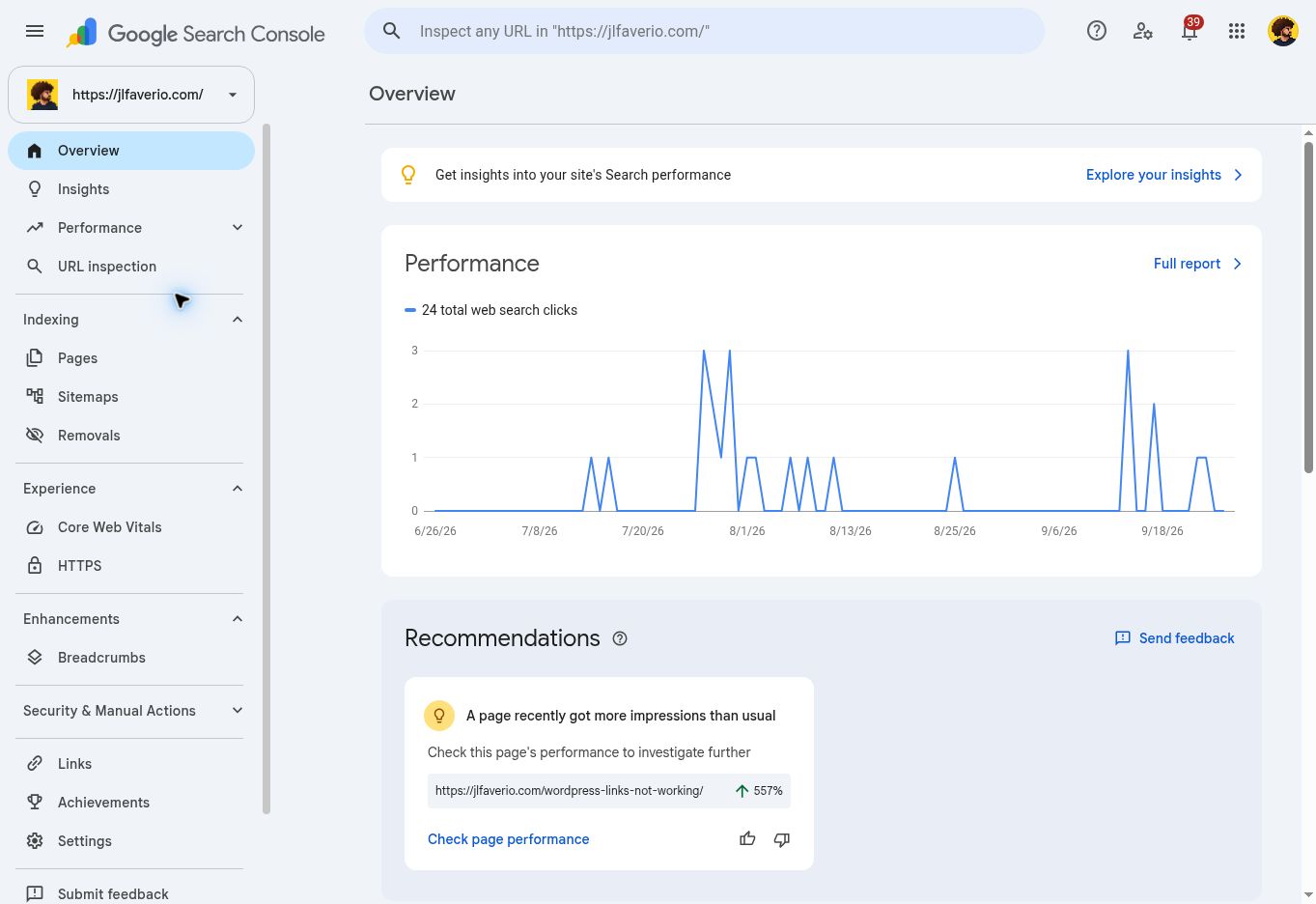
A simple weekly Search Console routine
- Check for serious warnings. Review any security or manual-action notices before making routine content changes.
- Compare search performance. Use comparable date ranges. Pick one important page whose clicks changed and inspect its queries.
- Check priority URLs. Review indexing for new or significantly updated service pages and guides.
- Choose one fix. Record the URL, evidence, change and review date. A short, useful task list beats a long export nobody opens.
For example, if a service page earns impressions for the right searches but sits well below the leading results, start by improving its usefulness and internal links. If it ranks prominently but attracts few clicks, review the title and search intent. Those are different problems and need different work.
Before you start changing WordPress
Confirm you are viewing the right Search Console property and date range. An empty report is not proof that something is broken. Some reports require enough data, and not every report appears for every site. Keep a backup before changing plugins, redirects or indexing rules.
Search Console reports problems; it does not repair your website. Use the relevant WordPress and technical SEO troubleshooting guide when the next step involves your site. For performance work, use my WordPress speed optimization guide.
Frequently asked questions
Is Google Search Console free?
Yes. You need access to a verified property to use its private website reports.
Does installing an SEO plugin replace Search Console?
No. A plugin helps manage your website’s SEO settings. Search Console reports information from Google. Use both to connect the settings you control with the results Google reports.
Does requesting indexing guarantee rankings?
No. A request does not guarantee indexing, and an indexed page is not guaranteed a particular position or any traffic.
Are these features ranked by popularity?
No. This collection prioritizes practical usefulness for WordPress owners. Search demand for a feature and how often people use it are different things.
Need help interpreting a report? Contact JL with the affected URL, the report name and the issue you are seeing.
Reference: Google’s Search Console reports overview. Documentation reviewed September 27, 2026.
