
Last updated on October 8th, 2026 at 09:12 am
I think we can all agree that a slow WordPress site is annoying to users, and costly to website managers. WordPress speed optimization starts with finding what is slowing your pages down, then fixing the parts that matter most.
These are the 10 areas I focus on when reviewing website performance. This guide draws on my experience maintaining WordPress sites and is written for beginners and small business owners who want practical steps they can actually use.
Before you start, backup and run a website speed test
- Create a current backup. Confirm that it includes your files and database and that you know how to restore it. Test bigger changes on staging first.
- Choose representative pages. Test your homepage, an important service or product page, and a typical blog post.
- Record your starting point. Run a website speed test with Google PageSpeed Insights. Check both mobile and desktop. GTmetrix is useful for inspecting which requests take the longest.
- Keep comparisons consistent. Record the URL, test tool, device, date, and settings in Google Sheets. Run each test a few times and compare typical results, not just your best score.
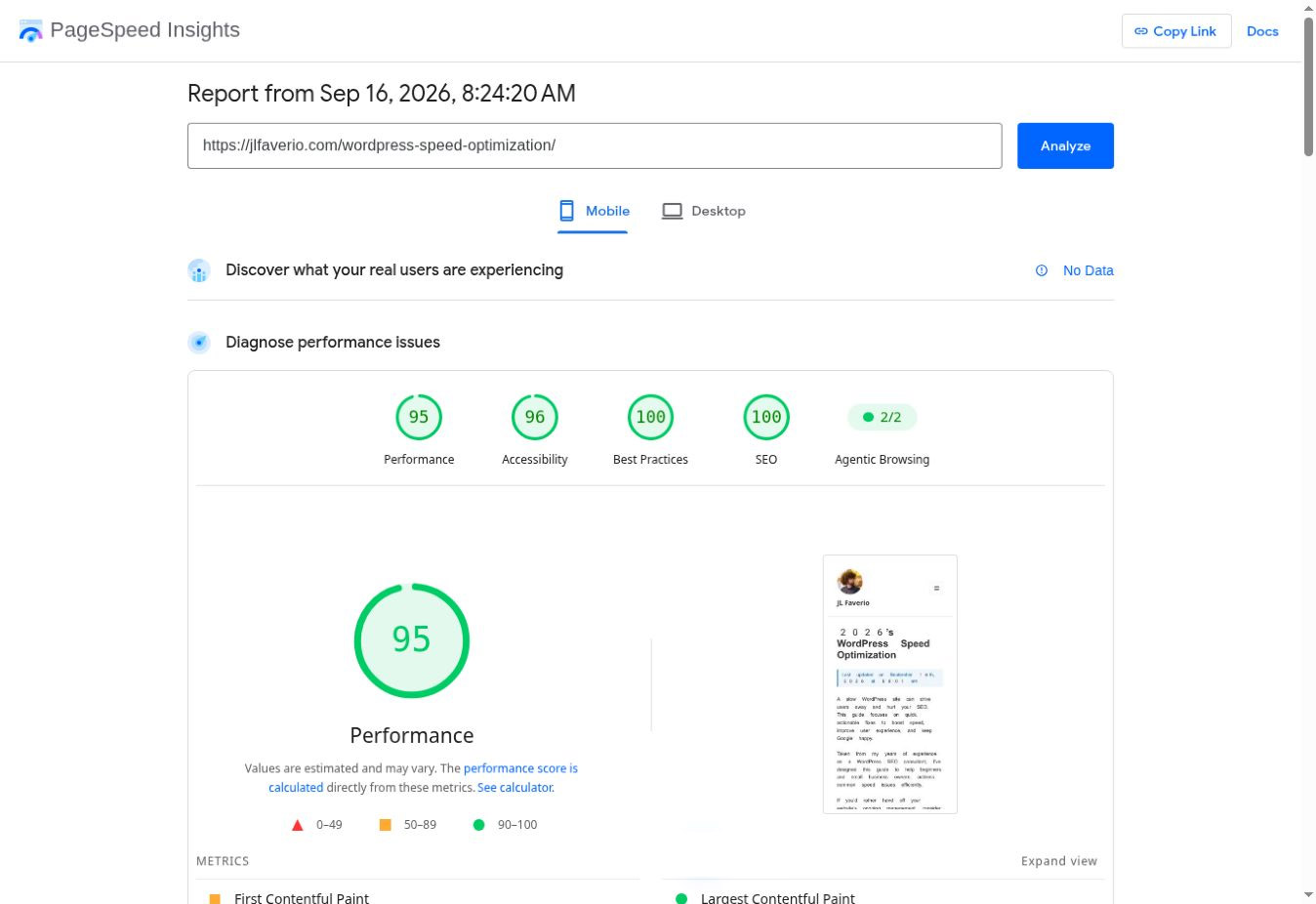
PageSpeed Insights separates real visitor data from a simulated Lighthouse test. Real visitor data covers a rolling 28-day period, so it will not immediately reflect today’s changes. A missing field-data report does not mean your site failed. Google explains the difference here.
10 areas I focus on when auditing website performance
1. Optimize all website images to load faster
Large images will slow down any WordPress site very quickly. I usually compress images before uploading them and use the WebP format whenever possible. Resizing huge photos before uploading them to your website is an easy best practice tip. In most cases, you don’t need anything over 2000px wide.
- Here’s what to check: Look for oversized images in your speed report. Compare the image’s pixel dimensions with the size at which it actually displays.
- And what to change: Resize and compress the original, then use WebP or AVIF where your setup supports it. Keep screenshots and text sharp enough to read.
- Then verify: Compare the delivered file size and visual quality on mobile and desktop. Confirm that the browser receives the optimized version.
Image optimization tools to consider
Imagify is a very popular plugin by the parent company of Rank Math SEO. You should definitely consider installing it inside WordPress. Or for compressing image files before upload, both TinyJPG and TinyPNG are free to use. Just pick one workflow instead of having several plugins repeatedly processing the same images.
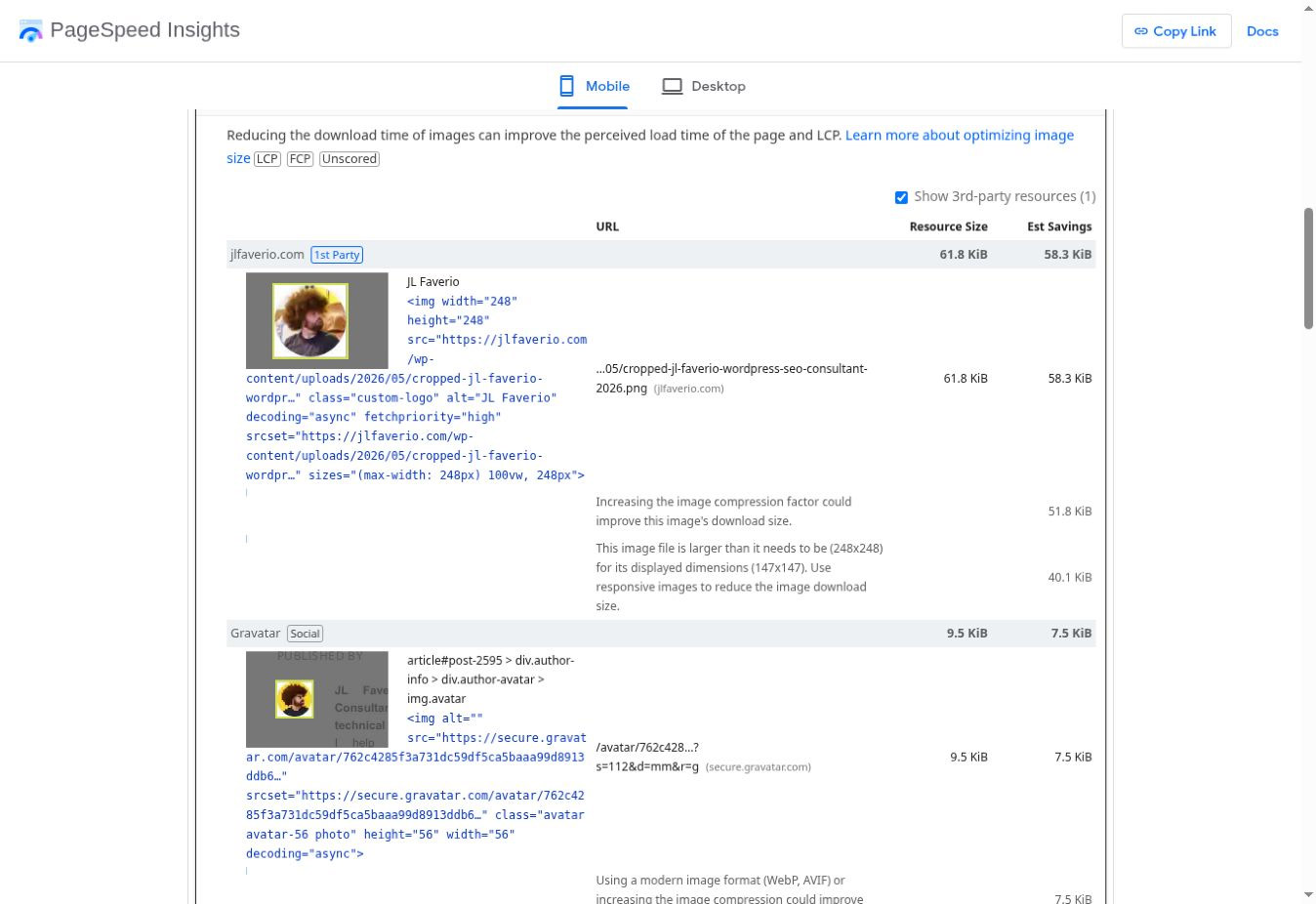
The same baseline report flags my logo and avatar for image delivery improvements. A high overall score can still leave specific opportunities worth investigating. Estimated savings are diagnostic estimates, not measured improvements.
2. Implement something magical called Smart Caching
Caching saves a prepared version of a page so WordPress does not have to rebuild it for every visitor. I typically use WP Rocket or LiteSpeed Cache when the hosting setup calls for it, but managed hosting may already handle page caching.
- Check: Ask your host which caching layers are active and which plugins it supports. Test as a logged-out visitor because logged-in requests often bypass page caching.
- Change: Use one compatible page-caching setup. Keep carts, checkout, account pages, and personalized content out of shared page caching.
- Verify: Check repeat page loads, then test menus, forms, and any shopping flow. Confirm that visitors can still see fresh content after an update.
Choosing a WordPress speed optimization plugin
LiteSpeed Cache is a free option, but its server-side page caching requires compatible LiteSpeed infrastructure or QUIC.cloud. WP Rocket is a paid option to consider when supported by your host. WP Fastest Cache is another tool I have used, but the right choice depends on your environment.
3. Invest in high-performance website hosting
Hosting makes a bigger difference than people sometimes realize. You can optimize WordPress all you want, but a slow or overloaded server can still hold the site back. I have recommended WP Engine to clients and agencies for years. Kinsta and SiteGround are also options I have worked with.
- Check: Review server response time, resource limits, and traffic spikes with your host. Ask whether slow requests are caused by uncached pages, database work, or resource shortages.
- Change: Use the host’s supported caching and CDN options first. Consider an upgrade or migration when testing shows that hosting resources are the bottleneck.
- Verify: Compare the same pages before and after the change, including uncached pages and logged-in tasks where relevant.
Table view of WordPress speed tools recommended or provided by top hosting companies
Start with your host’s documentation before buying another tool. A host’s own product, a recommended plugin, and a compatible plugin are different relationships.
Not sure which company hosts your website? Here’s how to check.
| Host | Tool | What to know |
|---|---|---|
| WP Engine | Built-in caching and NitroPack | Start with the host’s existing caching. NitroPack is an additional optimization option to test on staging. WP Engine owns NitroPack. |
| SiteGround | Speed Optimizer | SiteGround provides its own free optimization plugin. Available caching features depend on the hosting environment. |
| Hostinger | LiteSpeed Cache | Hostinger recommends LiteSpeed Cache for WordPress. Confirm compatibility with your specific hosting setup. |
| Kinsta | Built-in caching and compatible WP Rocket features | Kinsta supports WP Rocket alongside its caching. Its guidance advises leaving WP Rocket’s cache preloading disabled. |
Do not install every tool in this table. For example, WP Engine disallows certain caching plugins because they conflict with its platform.
4. Minify and streamline your code, especially if ChatGPT wrote it
I have seen AI turn what should be 20 lines of CSS into 100. Extra lines alone do not prove a performance problem, but duplicate rules, unused scripts, and unnecessary features deserve a review.
- Check: Look for render-blocking resources and unused CSS or JavaScript in your speed report. Review duplicate custom CSS and unnecessary font families or weights.
- Change: Remove code you no longer need. Use your existing optimizer or Autoptimize for minification when compatible. Test script deferral or delay separately.
- Verify: Check the mobile menu, forms, search, cookie controls, and checkout. Reverse the last change if a feature breaks.
Common mistakes I see in the wild
Turning on every optimization setting at once. Combining files, delaying JavaScript, and removing unused CSS can have different effects. Enable only one tool’s version of each feature and test each change.
5. Use a Content Delivery System (CDN) to load your website globally
A content delivery network serves cached files from locations closer to your visitors. Cloudflare and Bunny CDN are options, but your hosting plan may already include a CDN.
- Check: Confirm whether a CDN is already active and which content it caches. A CDN does not automatically cache every HTML page.
- Change: Configure the supported integration and avoid overlapping CDN setups you cannot explain or maintain.
- Verify: Check images, fonts, and styles for broken URLs, then compare performance from locations that matter to your audience.
A CDN can reduce delivery time. It will not fix every slow database query or oversized page.
6. Audit and remove unused plugins, very carefully
I regularly audit WordPress plugins and remove anything that is not actually being used. That does not mean you need fewer than 10 plugins. I have worked on perfectly fast sites with dozens. What matters is what the plugins are doing.
- Check: Identify overlapping features, sitewide scripts that only one page needs, and slow database queries. Query Monitor can help investigate database and PHP activity.
- Change: Deactivate suspected plugins one at a time on staging. Remove confirmed unused plugins after checking for dependencies and stored data you need.
- Verify: Retest page speed and the features that plugin supported. Check forms, shortcodes, tracking, and scheduled tasks before applying the change live.
See my WordPress plugins I actually use for context on choosing tools. If the editor is the slow part, use my slow WordPress admin dashboard guide.
7. Turn on lazy loading for images and videos below the fold
Visitors should not have to download every offscreen image and video immediately. WordPress already handles basic image lazy loading, while tools such as WP Rocket can add controls for videos and embedded content.
- Check: Identify your largest visible image and the media farther down the page. Check whether WordPress or an existing plugin already handles lazy loading.
- Change: Lazy load offscreen media and consider a click-to-play preview for heavy video embeds. Do not lazy load the main image responsible for Largest Contentful Paint.
- Verify: Scroll through the page on a phone. Make sure images appear, videos play, and reserved image space prevents content from jumping around.
Google’s LCP guidance explains why delaying the main content image can make a page feel slower. Use one lazy-loading system instead of stacking several plugins.
8. Optimize your WordPress database
WordPress databases accumulate old revisions, expired transients, spam comments, and sometimes data left behind by removed plugins. Cleaning up unnecessary data can help maintenance, but it does not guarantee a faster site.
- Check: Look for excessive revisions, large autoloaded options, and slow queries. Confirm which plugin or feature owns data before deleting it.
- Change: With a restorable backup, use a tool such as WP-Optimize for clearly identified cleanup. Keep enough revisions to recover recent edits.
- Verify: Check editing, search, forms, and orders where applicable. Compare slow queries or response times rather than relying only on a smaller database size.
Common mistakes I’ve seen recently
Deleting unfamiliar tables because a cleanup tool labels them unused. Investigate first. If the database is reporting errors, follow my WordPress database repair guide before routine cleanup.
9. Choose a well-supported WordPress theme
I have never agreed that everyone needs the lightest theme possible to have a fast website. A well-built, properly configured theme matters more than a marketing label. I still use Enfold for many of my personal sites.
- Check: Review sliders, background videos, animation libraries, fonts, and builder features loaded by your current theme.
- Change: Disable features you do not use before replacing the theme. If a replacement is justified, test your real content with a maintained option such as GeneratePress, Astra, or Blocksy.
- Verify: Check important page layouts, mobile navigation, accessibility, and speed on staging. A fast empty demo is not proof that your finished site will perform the same way.
For housekeeping, see which WordPress themes to keep or delete. Keep any parent theme your active child theme requires.
10. Monitor your site’s performance on a regular basis
Website speed is not something you optimize once and forget about. Plugins change, content gets added, and third-party scripts can introduce new delays.
- Check: Repeat your baseline tests after significant changes and during routine maintenance. Review Core Web Vitals in Google Search Console when data is available.
- Change: Prioritize the issues affecting important pages and real visitors. Use PageSpeed Insights diagnostics or a GTmetrix waterfall to identify the next specific fix.
- Verify: Compare equivalent tests and confirm that the site still works. Track the change, result, and date in your Google Sheet.
A better score is useful evidence, but it is not a ranking guarantee. Aim for pages that load reliably, respond quickly, and let visitors complete their tasks.
Frequently asked questions
Can you increase WordPress website speed without a plugin?
Absolutely! You can resize and compress images before uploading them, remove unnecessary embeds, simplify page layouts, reduce font weights, and use your host’s existing caching and CDN. These are useful WordPress optimization steps even if you never install another plugin.
If you need a free WordPress speed optimization plugin, check LiteSpeed Cache or SiteGround Speed Optimizer against your hosting setup first.
Looking for WordPress speed optimization services instead?
If you would rather have someone else diagnose the slowdown, that is what I do. Contact me and send your website’s URL and the page(s) causing you problems.
I also offer website maintenance services for ongoing care. For other errors, try browsing my WP and SEO troubleshooting library.
